OpenClaw AI

OpenClaw ,包括 OpenCode 等都是是开源社区针对官方 Claude Code 打造的全能型、无限制开源替代方案。

OpenClaw 安装部署

  • OpenClaw v2026.3.8
  • Node.js v22.22.1

OpenClaw 依赖 Node.js 22 或更高版本。可以参考以下命令安装 Node.js

curl -o- https://raw.githubusercontent.com/nvm-sh/nvm/v0.39.7/install.sh | bash
source ~/.bashrc

nvm install 22
nvm use 22
nvm alias default 22

安装 OpenClaw

curl -fsSL https://openclaw.ai/install.sh | bash


初始化与配置 ,安装完成后,你需要运行 onboard 向导来配置 API Key(如 Anthropic, OpenAI 或本地的 Ollama)以及通信渠道。

openclaw onboard --install-daemon

配置渠道(以 Telegram 为例)

openclaw channels login telegram

查看 OpenClaw 安装的 Skills

openclaw skills list

安装完成后,其配置和常用文件位于 ~/.openclaw/

# tree .openclaw/
.openclaw/
├── agents
│ └── main
│ ├── agent
│ │ └── auth-profiles.json
│ └── sessions
│ ├── 6a0afd9a-145e-4d81-8c06-470b1fff0be9.jsonl
│ └── sessions.json
├── canvas
│ └── index.html
├── completions
│ ├── openclaw.bash
│ ├── openclaw.fish
│ ├── openclaw.ps1
│ └── openclaw.zsh
├── cron
│ └── jobs.json
├── devices
│ ├── paired.json
│ └── pending.json
├── identity
│ ├── device-auth.json
│ └── device.json
├── logs
│ └── config-audit.jsonl
├── openclaw.json # 主配置文件
├── openclaw.json.bak
├── update-check.json
└── workspace
├── AGENTS.md
├── BOOTSTRAP.md
├── HEARTBEAT.md
├── IDENTITY.md
├── SOUL.md
├── TOOLS.md
└── USER.md

交互方式

在 2026.3 版本中,OpenClaw 不再是一个简单的本地脚本,而是一个 客户端-服务端 体系。你现在的身份是管理员,你需要通过 TUI(终端用户界面) 或者 Agent 命令来与后台的 龙虾(Lobster) 进行对话。

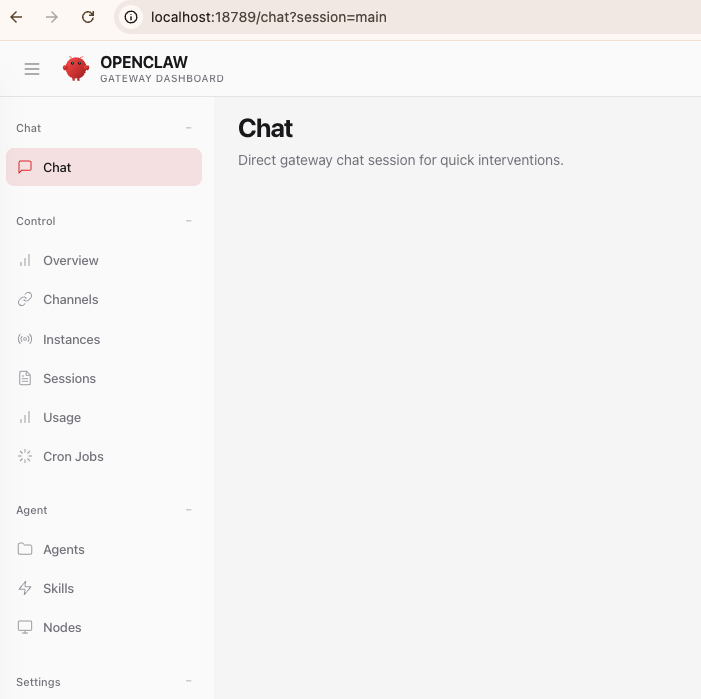
GUI 交互

在无 GUI 的服务器上安装后,可以参考 openclaw dashboard 的输出并配合 SSH Tunnel ( ssh -N -L 18789:127.0.0.1:18789 root@<host> )在本地(如 MacOS)启动 UI

# openclaw dashboard

🦞 OpenClaw 2026.3.8 (3caab92) — Type the command with confidence—nature will provide the stack trace if needed.

Dashboard URL: http://127.0.0.1:18789/#token=6e03b40c7c4bdabd657b5d88a06c05d467f8b86373fc79d7
Copy to clipboard unavailable.
No GUI detected. Open from your computer:
ssh -N -L 18789:127.0.0.1:18789 root@<host>
Then open:
http://localhost:18789/
http://localhost:18789/#token=6e03b40c7c4bdabd657b5d88a06c05d467f8b86373fc79d7
Docs:
https://docs.openclaw.ai/gateway/remote
https://docs.openclaw.ai/web/control-ui

运行以下命令让 OpenClaw 的后端网关真正开始监听端口,这会监听本地端口 127.0.0.1:18789

openclaw gateway --port 18789

在本地访问 http://localhost:18789/#token=6e03b40c7c4bdabd657b5d88a06c05d467f8b86373fc79d7

终端交互 (TUI - Terminal User Interface)

在 Linux 服务器中,可以直接使用 openclaw tui 在服务器本地或通过 SSH 直接与 Agent 聊天。

即时通讯软件 (Messaging Channels)

支持平台 : WhatsApp, Telegram, Discord, Slack, Signal, iMessage 等。

交互逻辑

  1. 在服务器上配置 Channel(如 openclaw channels login telegram )。
  2. 扫码或输入 Bot Token。
  3. 在手机端对机器人说话,它会自动调用后端 Gateway 处理并回传结果。

场景 : 移动办公。比如在 WhatsApp 发一句“帮我订明天下午两点的会议室”,它会自动操作你的日历。

自动化与调度 (Cron & Webhooks)

这是一种 非即时 的交互方式。

  • Cron : 你可以设置定时任务( openclaw cron add ... ),让 Agent 每天早上 8 点自动给你发一份“今日天气与邮件摘要”。

  • Webhooks : 外部系统触发。例如 GitHub 有新的 PR 时,触发 OpenClaw 自动进行代码审计。

OpenClaw 常用配置

OpenClaw 主配置文件默认为 ~/.openclaw/openclaw.json

Gateway 配置

OpenClaw 通过 Gateway 控制 API 服务如何暴露、谁能访问、允许执行哪些设备命令。

~/.openclaw/openclaw.json
{
"gateway": {
"port": 18789, // OpenClaw API 网关监听的端口,openclaw gateway --port 18789 可以自定义端口
"mode": "local", // Gateway 的运行模式。local 监听127.0.0.1 ; lan 局域网访问; public 公网访问; meth 多节点协同;
"bind": "loopback", // API 服务绑定的网络接口。loopback 等价于 127.0.0.1
"auth": { // API 访问认证方式。调用 API 必须带 token,
"mode": "token", // none 无认证; token Token 认证; oauth OAuth 认证; mtls 证书认证;
"token": "6e03b40c7c4bdabd657b5d88a06c05d467f8b86373fc79d7"
},
"tailscale": { // Tailscale 是一种内网穿透技术(基于 Wireguard)
"mode": "off",
"resetOnExit": false
},
"nodes": { // 设备能力权限控制
"denyCommands": [ // 命令黑名单,禁止 Agent 执行这些设备操作
"camera.snap", // 摄像头, 拍照
"camera.clip", // 录视频
"screen.record", // 屏幕, 录屏
"contacts.add", // 联系人, 添加联系人
"calendar.add", // 日历,添加日历
"reminders.add", // 提醒,创建提醒
"sms.send" // 短信,发送短信
]
}
}
}

修改默认 Model

  • cli 方式修改

    # openclaw config set agents.defaults.model.primary google/gemini-3-flash-preview

    🦞 OpenClaw 2026.3.8 (3caab92) — I read logs so you can keep pretending you don't have to.

    Config overwrite: /root/.openclaw/openclaw.json (sha256 e47a2fbf77c84c04dade91d8a5eb8afa95bdc06cd9dc6b85d6b35fc922c7799d -> 7645629694be7eb0eb6fac1157634033149bc442967e9d1f1dac73327e40bd83, backup=/root/.openclaw/openclaw.json.bak)
    Updated agents.defaults.model.primary. Restart the gateway to apply.

    它会自动修改主配置文件 ~/.openclaw/openclaw.json 并在更改之前备份。修改后重启 Gateway 生效

  • 手动修改配置文件

    ~/.openclaw/openclaw.json
    {
    "meta": {
    "lastTouchedVersion": "2026.3.8",
    "lastTouchedAt": "2026-03-11T08:55:06.020Z"
    },

    "agents": {
    "defaults": {
    "model": {
    "primary": "google/gemini-3-flash-preview"
    },
    "workspace": "/root/.openclaw/workspace",
    "compaction": {
    "mode": "safeguard"
    },
    "maxConcurrent": 4,
    "subagents": {
    "maxConcurrent": 8
    }
    }
    }
    }

安全管控

在 OpenClaw AI 2026.3.8 中,Agent 默认是具备 文件读写、Shell 执行、网络访问等 能力 的。如果不做安全限制,可能会对系统造成不可逆的灾难后果。

在生成环境中,建议使用 Docker 运行 OpenClaw 。使其对宿主机文件系统只读,防止无意间修改线上环境。

目前 OpenClaw 默认配置中已经有 内置权限禁止部分危险操作 ,如果要限制其他命令,可以在 gateway.nodes.denyCommands 中添加即可。

gateway.nodes.denyCommands 黑名单 只对通过 Gateway 调用的命令生效,如 API 调用、远程客户端、agent 在 gateway 模式下的执行

如果你在本机直接运行 openclaw tui ,TUI 是 本地 Agent 执行,绕过了 Gateway

本地运行下,agent 拥有 full access 权限 ,主要受以下配置控制

agents.defaults.model
agents.defaults.workspace
commands.native / commands.nativeSkills
{
"gateway": {
"port": 18789, // OpenClaw API 网关监听的端口,openclaw gateway --port 18789 可以自定义端口
"mode": "local", // Gateway 的运行模式。local 监听127.0.0.1 ; lan 局域网访问; public 公网访问; meth 多节点协同;
"bind": "loopback", // API 服务绑定的网络接口。loopback 等价于 127.0.0.1
"auth": { // API 访问认证方式。调用 API 必须带 token,
"mode": "token", // none 无认证; token Token 认证; oauth OAuth 认证; mtls 证书认证;
"token": "6e03b40c7c4bdabd657b5d88a06c05d467f8b86373fc79d7"
},
"tailscale": {
"mode": "off",
"resetOnExit": false
},
"nodes": { // 设备能力权限控制
"denyCommands": [ // 禁止 Agent 执行这些设备操作。这些命令要小心使用。比如配置 "file.delete“ 和 "shell.exec" 是不会阻止文件被删除的
"camera.snap", // 摄像头, 拍照
"camera.clip", // 录视频
"screen.record", // 屏幕, 录屏
"contacts.add", // 联系人, 添加联系人
"calendar.add", // 日历,添加日历
"reminders.add", // 提醒,创建提醒
"sms.send", // 短信,发送短信

"shell.exec", // 不能执行 shell 命令
"file.delete", // 禁止删除文件, 只使用这个无效
"file.write",
"file.move",
"network.fetch" // 不能下载文件
]
}
}
}